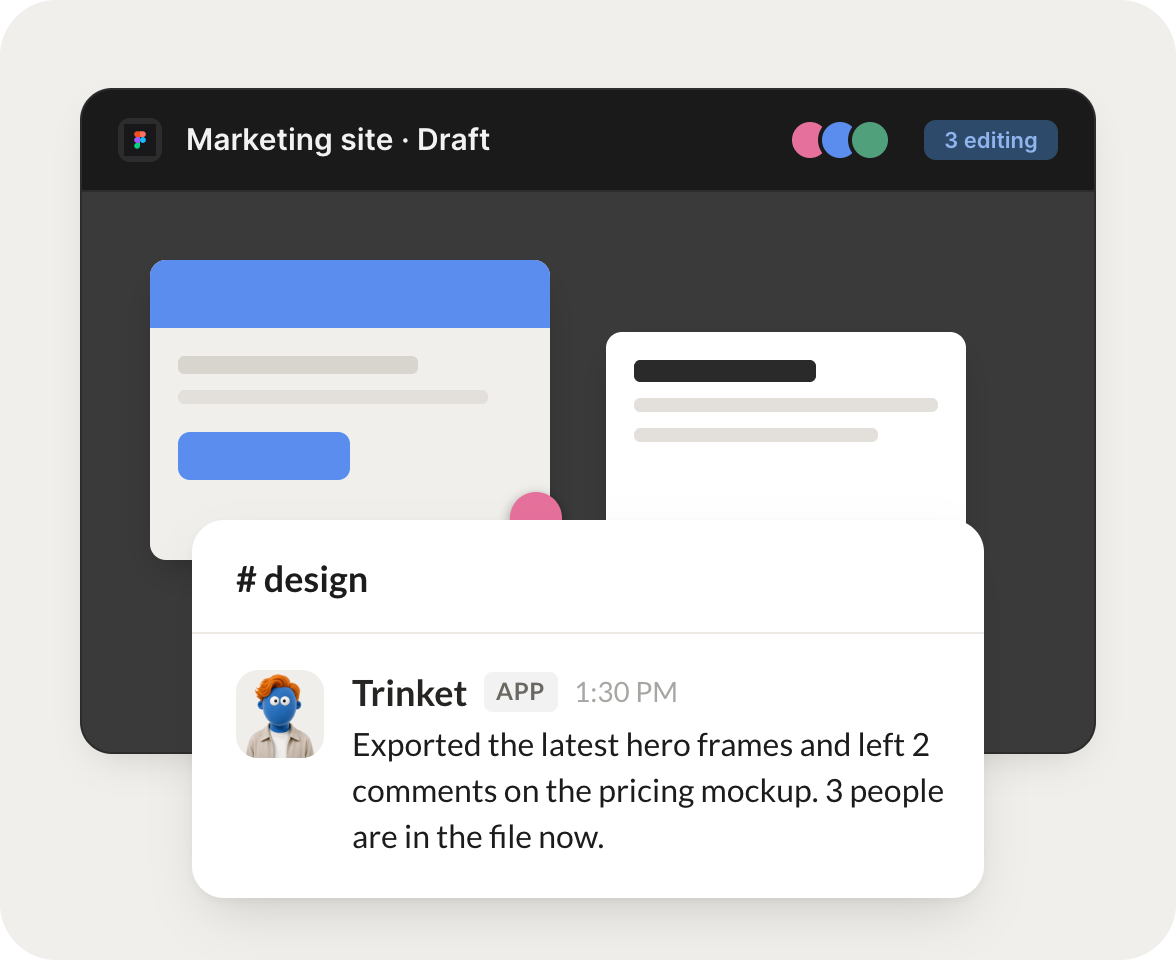
Connect Figma and your agent reads your design work. It pulls file structure and content, summarizes open comments, exports frames, and finds the file you need.
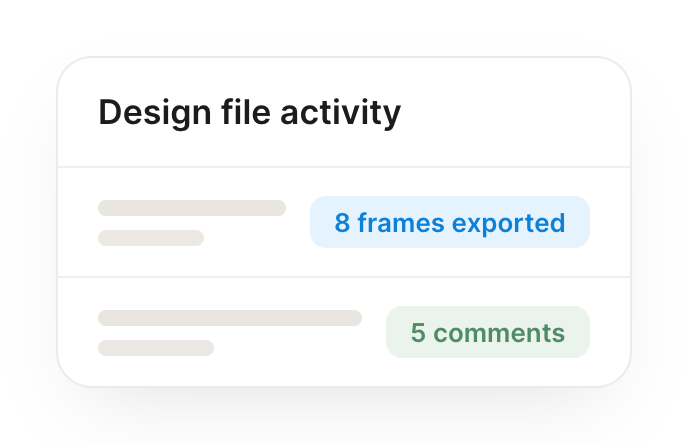
One connection, and your agent reads your files and frames, gathers open comments, exports images of specific frames, and locates the right design file.
Just ask, in plain English
Ask your agent for what you need, right where you already work. It handles the rest in Figma.
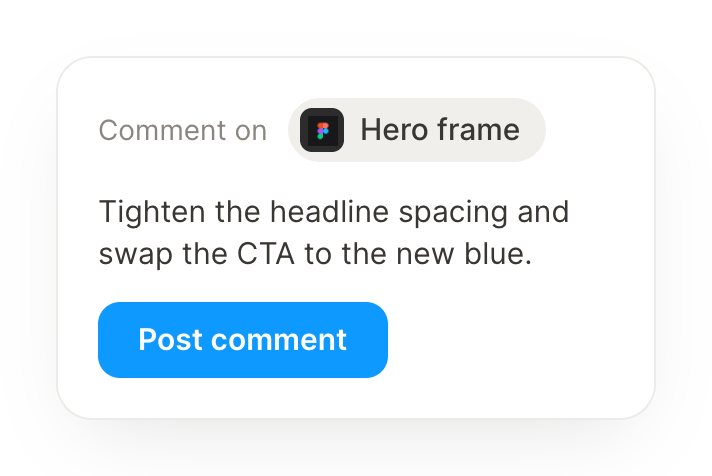
Summarize the open comments across our design files so the team knows what to address.
Trinket
APP
9:19 AM
Done. I read every open comment across your active files and grouped them by design. There are twelve open threads, and I summarized the theme of each so the team knows what to address first.
Arnav
9:24 AM
Super helpful.
#
handoff
Dylan
8:31 AM
When a design is marked ready, pull the specs into a ticket for engineering.
Tomato
APP
8:32 AM
On it. The checkout redesign was marked ready, so I pulled the specs, spacing, colors, and component names, into a new engineering ticket with frame exports attached.
Dylan
8:38 AM
Great, assigning it now.
#
revisions
Brendan
9:00 AM
Tell me which screens changed in the latest revision of the mobile flow.
Junebug
APP
9:02 AM
Checked. Four screens changed in the latest revision of the mobile flow, the onboarding steps and the empty states. I listed each with a note on what moved.
Brendan
9:05 AM
Thanks, reviewing now.
Live in three steps
No integration project. Connect in under a minute and your agent is working.
01
Find
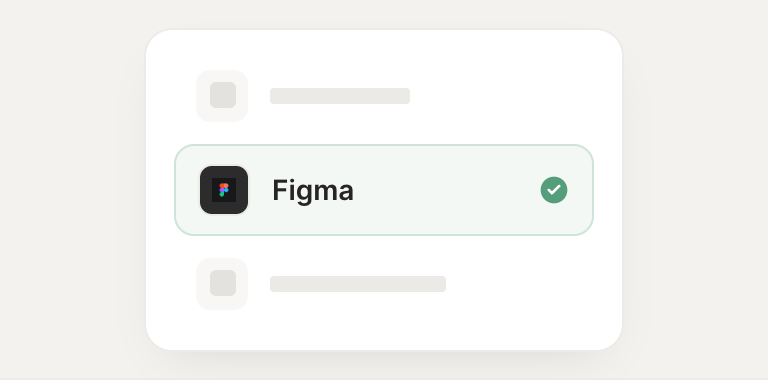
Pick the integration from your agent's list, or just ask the agent to connect it.
02
Approve
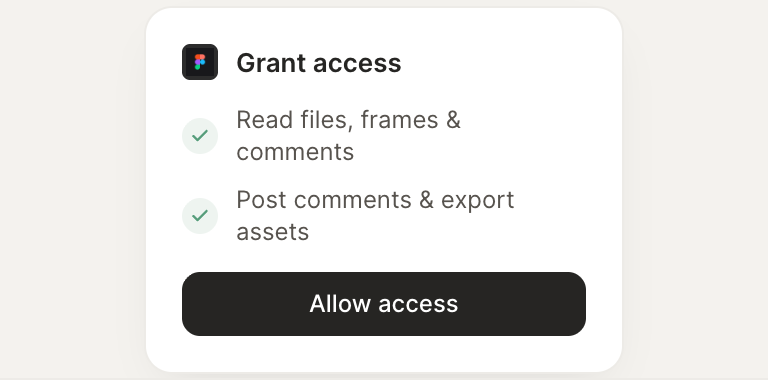
Confirm the access. Change what's granted anytime.